Encontrar

Artículo
· 8 mar, 2024 Lectura de 3 min

IKO - Lessons Learned (Part 4 - The Storage Class)

The IKO will dynamically provision storage in the form of persistent volumes and pods will claim them via persistent volume claims.

But storage can come in different shapes and sizes. The blueprint to the details about the persistent volumes comes in the form of the storage class.

This raises the question: we've deployed the IrisCluster, and haven't specified a storage class yet. So what's going on?

You'll notice that with a simple

kubectl get storageclass

you'll find the storage classes that exist in your cluster. Note that storage classes are a cluster wide resource, not per namespace as other objects, like our pods and services.

You'll also notice that one of the storage classes is marked as default. This is the one that the IKO takes when we do not specify any. What if none are marked as default? In this case we have the following problem:

Persistent volumes are not able to be created, which in turn means persistent volume claims are not bound and therefore the pod is stuck in a pending state. It's like going to a restaurant and after looking at the menu telling the waiter/waitress that you'd like to order food, close the menu, hand it back to your server, and say thanks. We need to be more specific or our instructions are so vague that they mean nothing.

To solve this problem you could either set a default storage class in your cluster, or set the storage class name field in the CRD (this way you don't need to change what your default cluster storage class is in case you choose to use the non default storage class):

apiVersion: intersystems.com/v1alpha1
kind: IrisCluster
metadata:
  name: simple
spec:
  licenseKeySecret:
    #; to activate ISC license key
    name: iris-key-secret
  configSource:
    #; contains CSP-merge.ini, which is merged into IKO's
    #; auto-generated configuration.
    name: iris-cpf
  imagePullSecrets:
    - name: intersystems-pull-secret
  storageClassName: your-sc

  topology:
    data:
      image: containers.intersystems.com/intersystems/irishealth:2023.3
      compatibilityVersion: "2023.3"
      mirrored: true
      webgateway:
        image: containers.intersystems.com/intersystems/webgateway:2023.3
        type: apache
        replicas: 1
        applicationPaths:
          - /csp/sys
          - /csp/healthshare
          - /api/atelier
          - /csp/broker
          - /isc
          - /oauth2
          - /ui
        loginSecret:
           name: iris-webgateway-secret
           
    arbiter:
     image: containers.intersystems.com/intersystems/arbiter:2023.3
    webgateway:
      replicas: 1
      image: containers.intersystems.com/intersystems/webgateway:2023.3
      applicationPaths:
        #; All of the IRIS instance's system default applications.
        #; For Management Portal only, just use '/csp/sys'.
        #; To support other applications, please add them to this list.
        - /csp/sys
        - /csp/broker
        - /api
        - /isc
        - /oauth2
        - /ui
        - /csp/healthshare
      alternativeServers: LoadBalancing
      loginSecret:
        name: iris-webgateway-secret

  serviceTemplate:
    # ; to enable external IP addresses
    spec:
      type: LoadBalancer

Note that there are specific requirements for the storage class, as documented in the docs:

"Any storage class you define must include Kubernetes setting volumeBindingMode: WaitForFirstConsumerOpens for correct operation of the IKO."

Furthermore, I like to use allowVolumeExpansion: true.

Note that the provisioner of your storage class is platform specific.

The storage class pops up all over the CRD so remember to set it when you are customizing your storage for your cluster, in order to make sure you use the storage class that's right for you.

1 Comentario
Comentarios (1)1
Inicie sesión o regístrese para continuar
Artículo
· 6 mar, 2024 Lectura de 9 min

Connecting to DynamoDB Using Embedded Python: A Tutorial for Using Boto3 and ObjectScript to Write to DynamoDB

Introduction

As the health interoperability landscape expands to include data exchange across on-premise as well as hosted solutions, we are seeing an increased need to integrate with services such as cloud storage. One of the most prolifically used and well supported tools is the NoSQL database DynamoDB (Dynamo), provided by Amazon Web Services (AWS).

4 comentarios
Comentarios (4)1
Inicie sesión o regístrese para continuar
Artículo
· 6 mar, 2024 Lectura de 3 min

IKO - Lessons Learned (Part 3 - Services 101 and The Sidecars)

The IKO allows for sidecars. The idea behind them is to have direct access to a specific instance of IRIS. If we have mirrored data nodes, the web gateway will (correctly) only give us access to the primary node. But perhaps we need access to a specific instance. The sidecar is the solution.

Building on the example from the previous article, we introduce the sidecar by using a mirrored data node and of course arbiter.

apiVersion: intersystems.com/v1alpha1
kind: IrisCluster
metadata:
  name: simple
spec:
  licenseKeySecret:
    #; to activate ISC license key
    name: iris-key-secret
  configSource:
    #; contains CSP-merge.ini, which is merged into IKO's
    #; auto-generated configuration.
    name: iris-cpf
  imagePullSecrets:
    - name: intersystems-pull-secret

  topology:
    data:
      image: containers.intersystems.com/intersystems/irishealth:2023.3
      compatibilityVersion: "2023.3"
      mirrored: true
      webgateway:
        image: containers.intersystems.com/intersystems/webgateway:2023.3
        type: apache
        replicas: 1
        applicationPaths:
          - /csp/sys
          - /csp/healthshare
          - /api/atelier
          - /csp/broker
          - /isc
          - /oauth2
          - /ui
        loginSecret:
           name: iris-webgateway-secret
           
    arbiter:
     image: containers.intersystems.com/intersystems/arbiter:2023.3
    webgateway:
      replicas: 1
      image: containers.intersystems.com/intersystems/webgateway:2023.3
      applicationPaths:
        #; All of the IRIS instance's system default applications.
        #; For Management Portal only, just use '/csp/sys'.
        #; To support other applications, please add them to this list.
        - /csp/sys
        - /csp/broker
        - /api
        - /isc
        - /oauth2
        - /ui
        - /csp/healthshare
      alternativeServers: LoadBalancing
      loginSecret:
        name: iris-webgateway-secret

  serviceTemplate:
    # ; to enable external IP addresses
    spec:
      type: LoadBalancer


Notice how the sidecar is nearly identical to the 'maincar' webgateway. It just is placed within the data node. That's because it's a second container that sits in the pod alongside the IRIS image. This all sounds great. But how do we actually access it? The IKO nicely creates services for us, but for the sidecar that responsibility will fall on us.

So how do we expose this webgateway? With a service like this:

apiVersion: v1
kind: Service
metadata:
  name: sidecar-service
spec:
  ports:
  - name: http
    port: 81
    protocol: TCP
    targetPort: 80
  selector:
    intersystems.com/component: data
    intersystems.com/kind: IrisCluster
    intersystems.com/mirrorRole: backup
    intersystems.com/name: simple
    intersystems.com/role: iris
  type: LoadBalancer

Now our 'maincar' service always points at the primary and the sidecar at the backup. But we very well could have created a sidecar service to expose data-0-0 and one to expose data-0-1, regardless of which is the primary or backup. Services give the possibility of exposing any pod we want and targeting it by what you notice is the selector, which just identifies a pod (or multiple pods) by its labels.

We've barely scratched the surface on services and haven't even mentioned their more sophisticated partner, ingress. You can read up more about that here in the meantime.

In the next bite sized article we'll cover the storage class.

1 Comentario
Comentarios (1)1
Inicie sesión o regístrese para continuar
Artículo
· 4 mar, 2024 Lectura de 8 min

InterSystems IRIS® CloudSQL Metrics to Google Cloud Monitoring

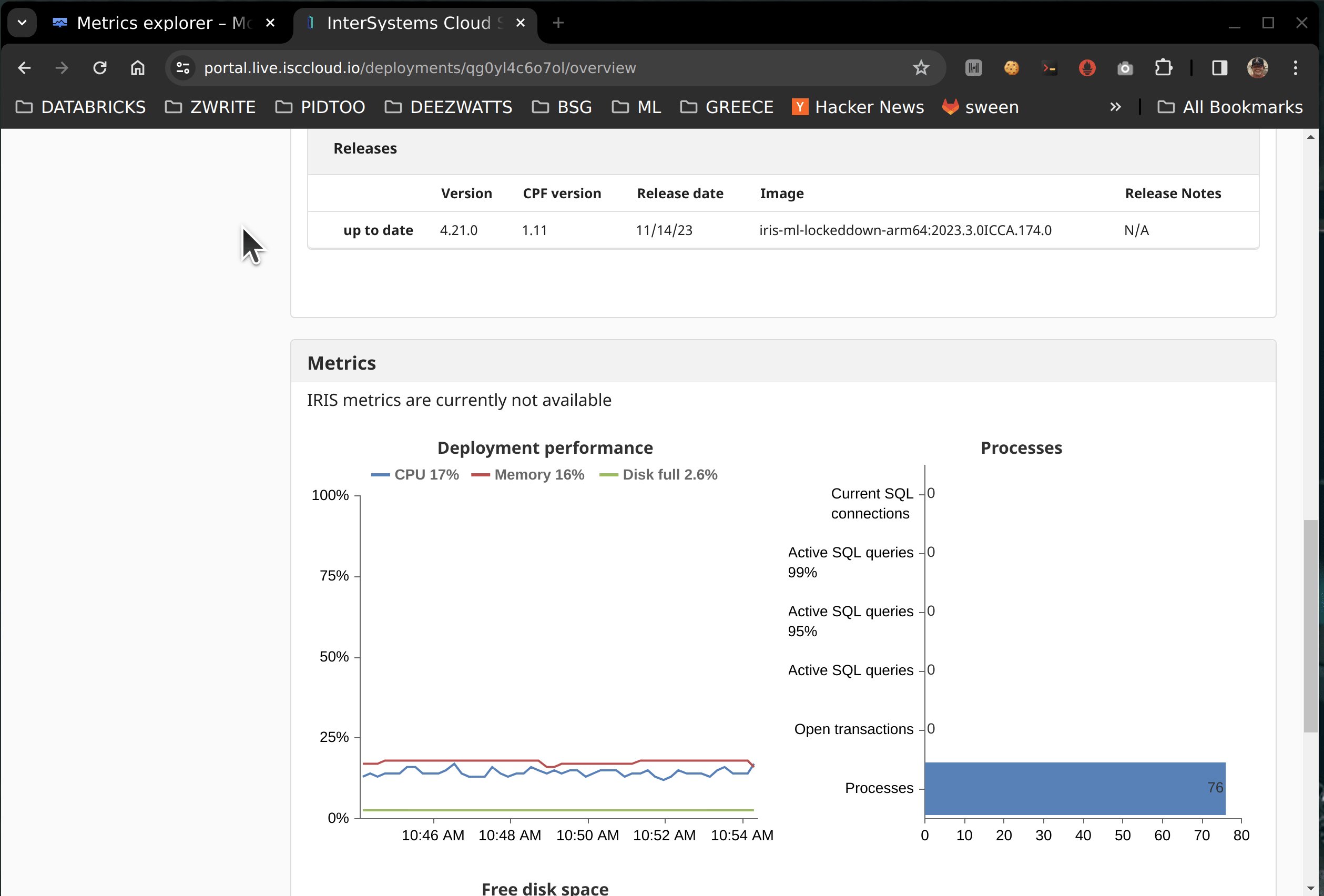
If you are a customer of the new InterSystems IRIS® Cloud SQL and InterSystems IRIS® Cloud IntegratedML® cloud offerings and want access to the metrics of your deployments and send them to your own Observability platform, here is a quick and dirty way to get it done by sending the metrics to Google Cloud Platform Monitoring (formerly StackDriver).

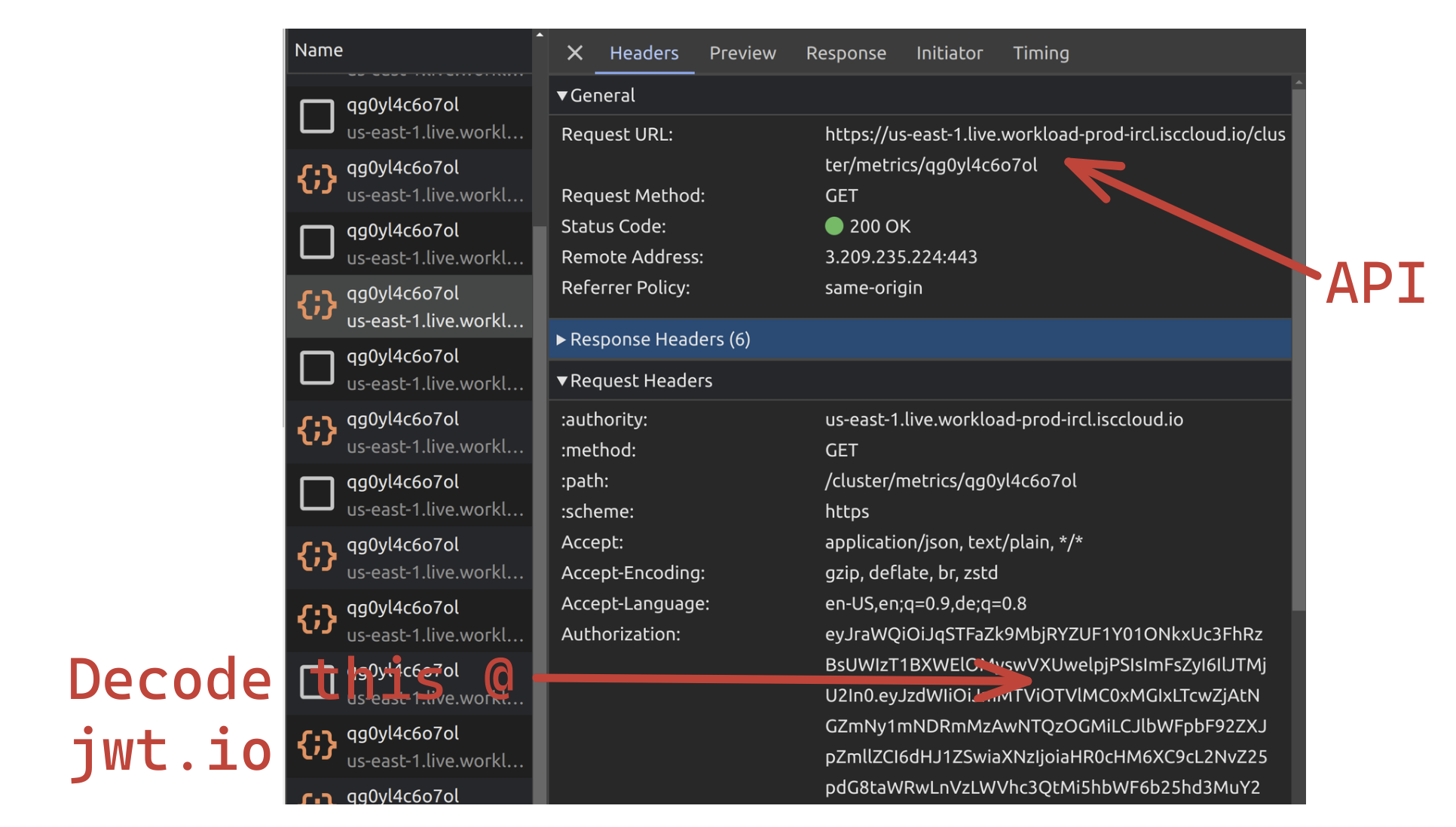
The Cloud portal does contain a representation of some top level metrics for at-a-glance heads up metrics, which is powered by a metrics endpoint that is exposed to you, but without some inspection you would not know it was there. 

🚩 This approach is most likely taking advantage of a "to be named feature", so with that being said, it is not future-proof and definitely not supported by InterSystems.


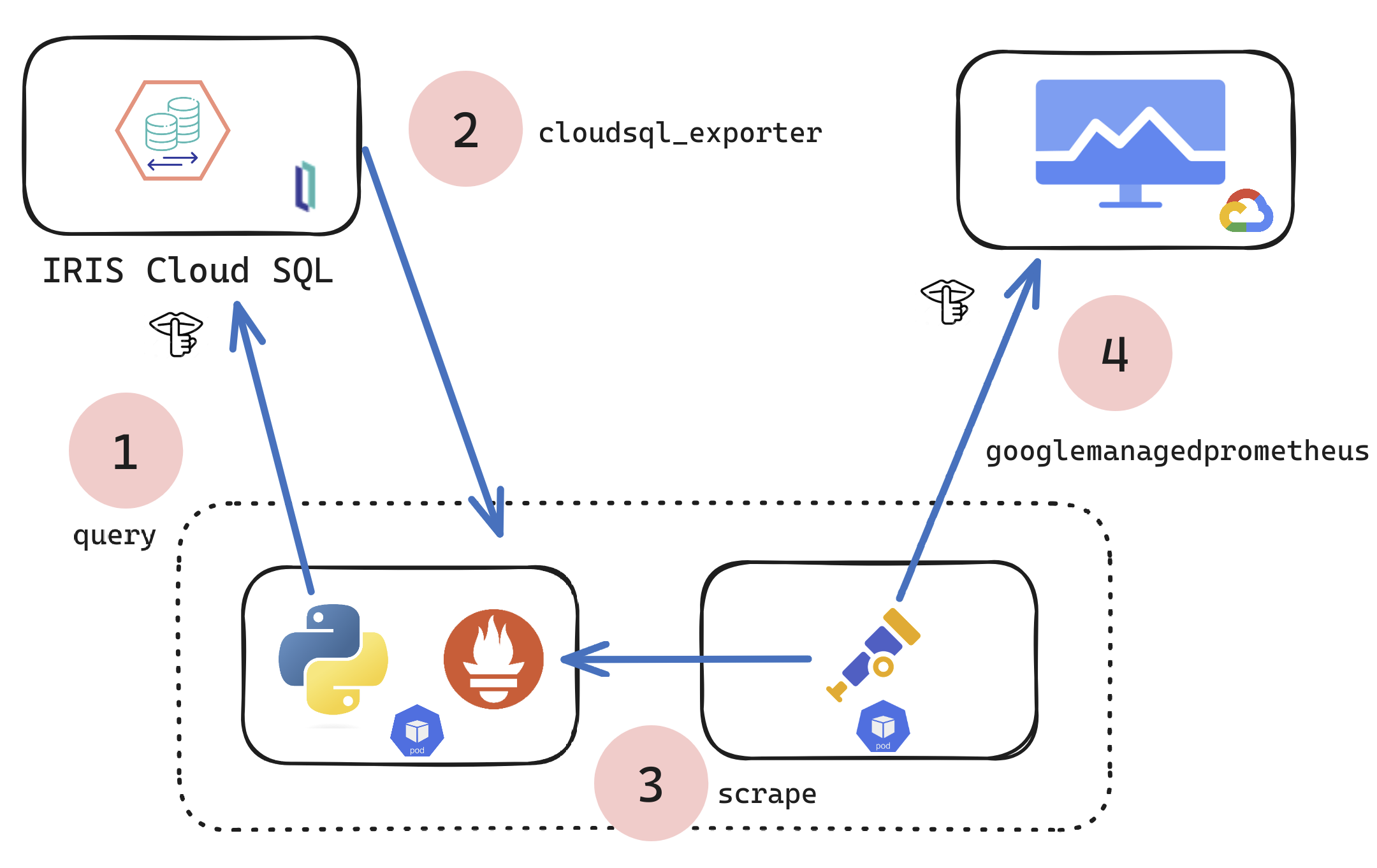
So what if you wanted a more comprehensive set exported? This technical article/example shows a technique to scrape and forward metrics to observability, it can be modified to suit your needs, to scrape ANY metrics target and send to ANY observability platform using the Open Telemetry Collector.

The mechanics leading up to the above result can be accomplished in many ways, but for here we are standing up a Kubernetes pod to run a python script in one container, and Otel in another to pull and push the metrics... definitely a choose your own adventure, but for this example and article k8s is the actor pulling this off with Python.

Steps:

  • Prereqs
  • Python
  • Container
  • Kubernetes
  • Google Cloud Monitoring

Prerequisites:

  • An active subscription to IRIS®  Cloud SQL
  • One Deployment, running, optionally with Integrated ML
  • Secrets to supply to your environment 

Environment Variables

 
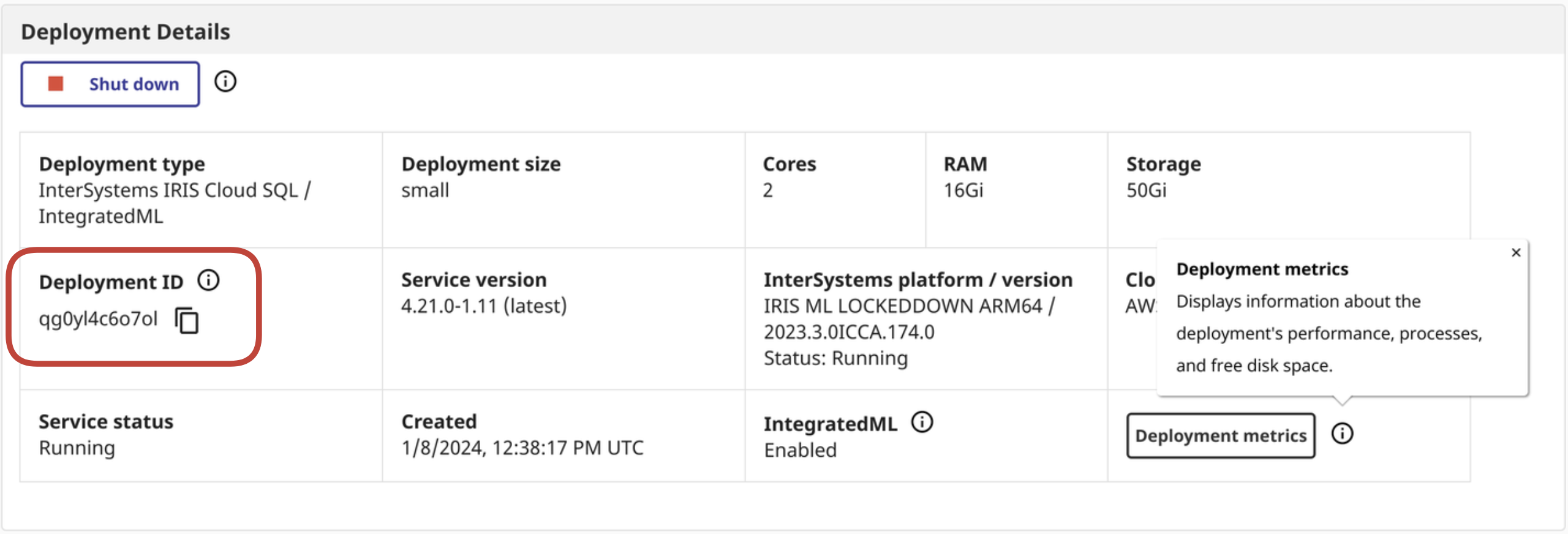
 Obtain Secrets

Python:

Here is the python hackery to pull the metrics from the Cloud Portal and export them locally as metrics for the otel collector to scrape:

 
iris_cloudsql_exporter.py

Docker:

 
Dockerfile


Deployment:

k8s; Create us a namespace:

kubectl create ns iris

k8s; Add the secret:

kubectl create secret generic iris-cloudsql -n iris \
    --from-literal=user=$IRIS_CLOUDSQL_USER \
    --from-literal=pass=$IRIS_CLOUDSQL_PASS \
    --from-literal=clientid=$IRIS_CLOUDSQL_CLIENTID \
    --from-literal=api=$IRIS_CLOUDSQL_API \
    --from-literal=deploymentid=$IRIS_CLOUDSQL_DEPLOYMENTID \
    --from-literal=userpoolid=$IRIS_CLOUDSQL_USERPOOLID

otel, Create Config:

apiVersion: v1
data:
  config.yaml: |
    receivers:
      prometheus:
        config:
          scrape_configs:
          - job_name: 'IRIS CloudSQL'
              # Override the global default and scrape targets from this job every 5 seconds.
            scrape_interval: 30s
            scrape_timeout: 30s
            static_configs:
                    - targets: ['192.168.1.96:5000']
            metrics_path: /

    exporters:
      googlemanagedprometheus:
        project: "pidtoo-fhir"
    service:
      pipelines:
        metrics:
          receivers: [prometheus]
          exporters: [googlemanagedprometheus]
kind: ConfigMap
metadata:
  name: otel-config
  namespace: iris

k8s; Load the otel config as a configmap:

kubectl -n iris create configmap otel-config --from-file config.yaml

k8s; deploy load balancer (definitely optional), MetalLB.  I do this to scrape and inspect from outside of the cluster.

cat <<EOF | kubectl apply -f -n iris -
apiVersion: v1
kind: Service
metadata:
  name: iris-cloudsql-exporter-service
spec:
  selector:
    app: iris-cloudsql-exporter
  type: LoadBalancer
  ports:
  - protocol: TCP
    port: 5000
    targetPort: 8000
EOF

gcp; need the keys to google cloud, the service account needs to be scoped 

  • roles/monitoring.metricWriter
kubectl -n iris create secret generic gmp-test-sa --from-file=key.json=key.json

k8s; the deployment/pod itself, two containers:

 
deployment.yaml
kubectl -n iris apply -f deployment.yaml

Running

Assuming nothing is amiss, lets peruse the namespace and see how we are doing.

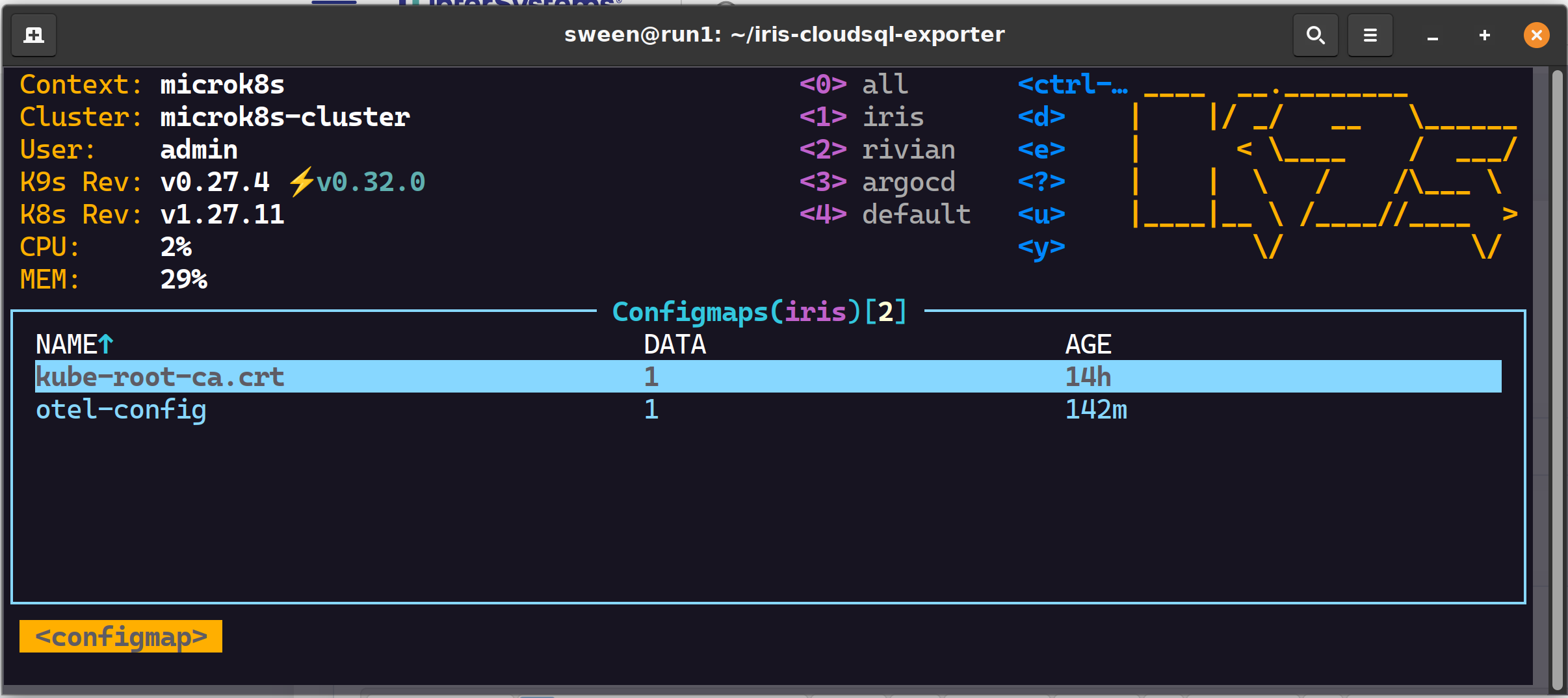
✔ 2 config maps, one for GCP, one for otel


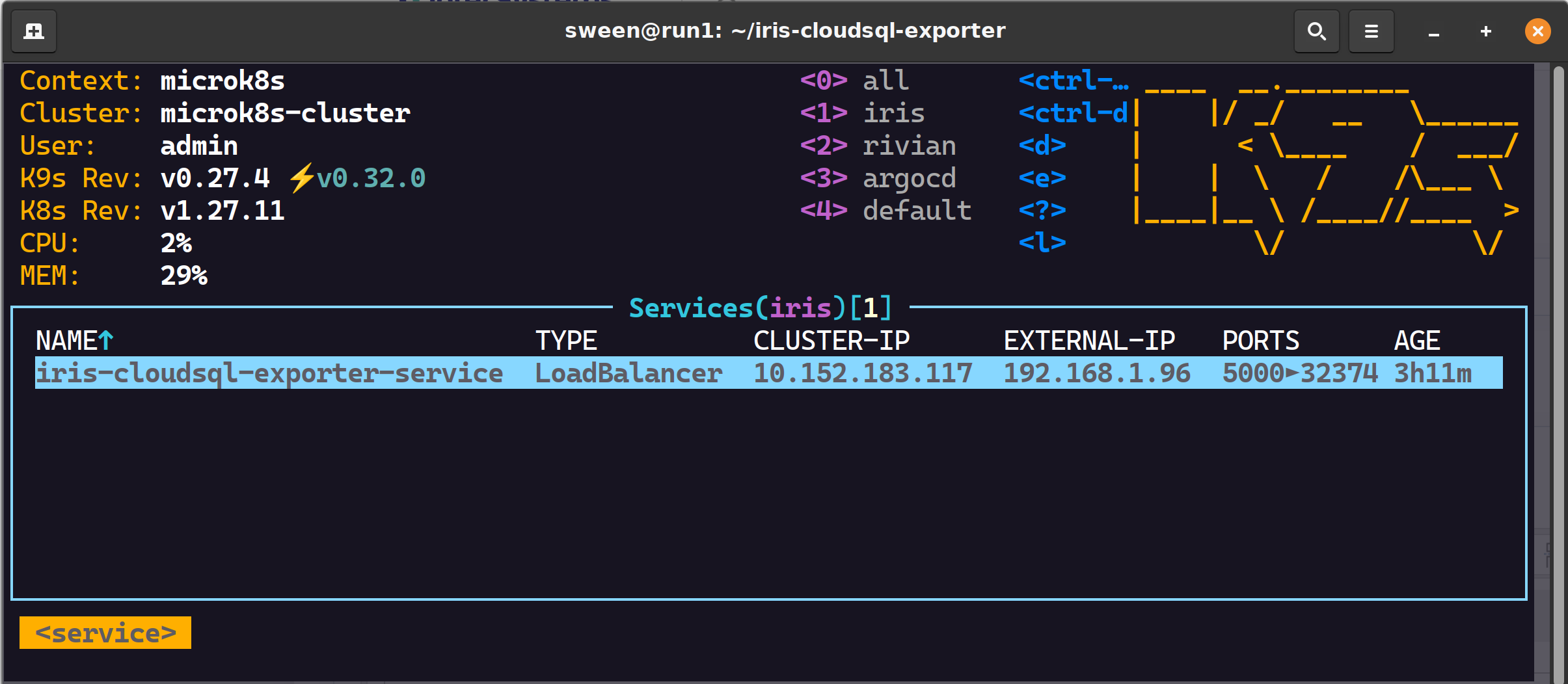
✔ 1 load balancer


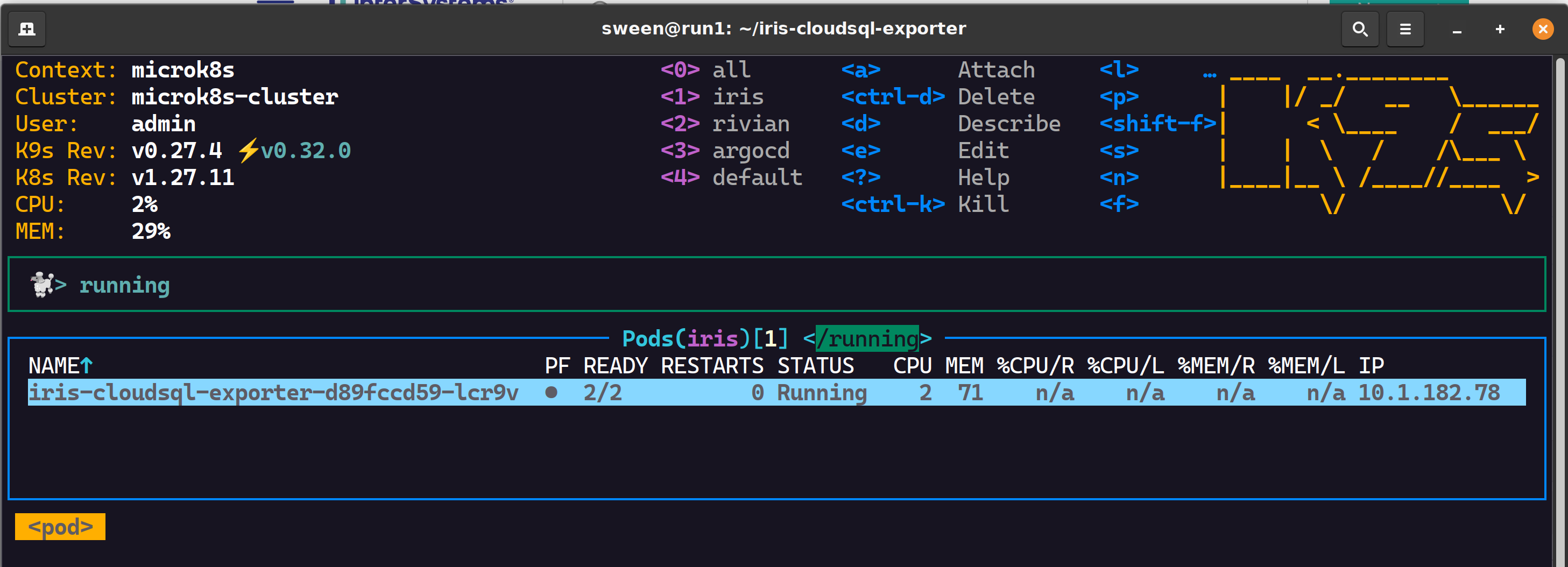
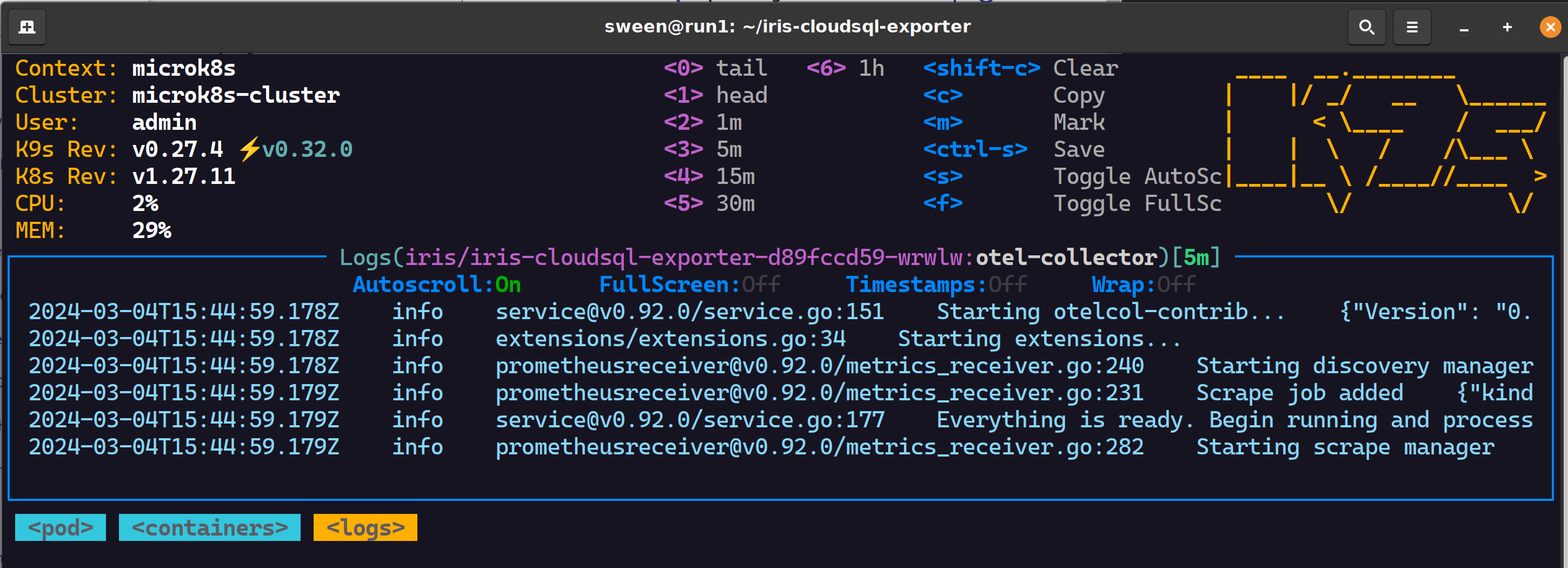
✔ 1 pod, 2 containers successful scrapes


Google Cloud Monitoring

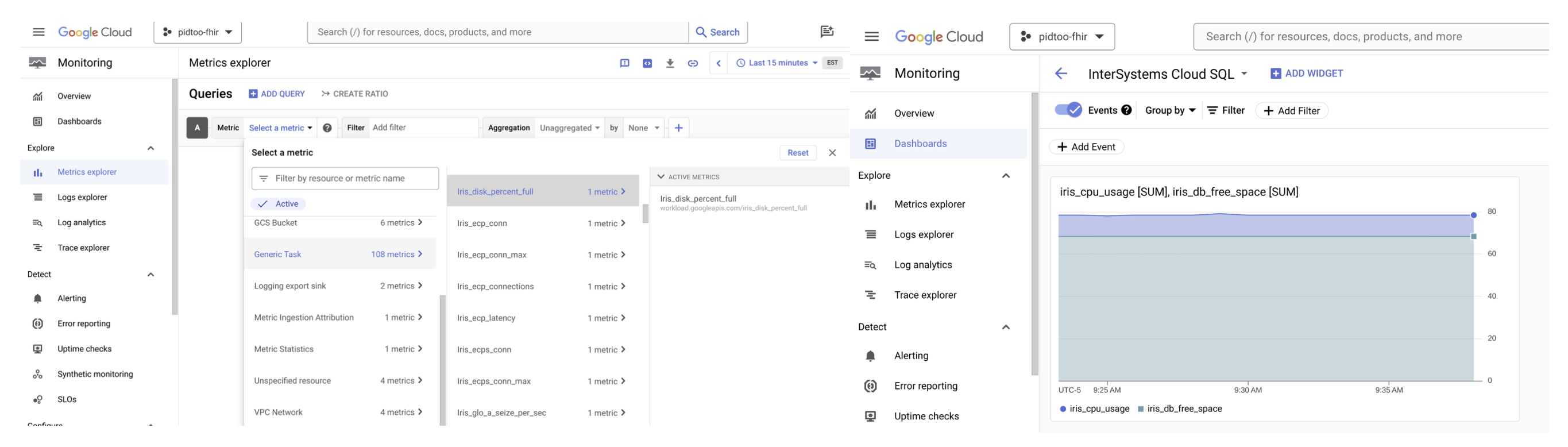
Inspect observability to see if the metrics are arriving ok and be awesome in observability!


1 Comentario
Comentarios (1)2
Inicie sesión o regístrese para continuar
Artículo
· 4 mar, 2024 Lectura de 4 min

IKO - Lessons Learned (Part 2 - The IrisCluster)

We now get to make use of the IKO.

Below we define the environment we will be creating via a Custom Resource Definition (CRD). It lets us define something outside the realm of what the Kubernetes standard knows (this is objects such as your pods, services, persistent volumes (and claims), configmaps, secrets, and lots more). We are building a new kind of object, an IrisCluster object.

apiVersion: intersystems.com/v1alpha1
kind: IrisCluster
metadata:
  name: simple
spec:
  licenseKeySecret:
    #; to activate ISC license key
    name: iris-key-secret
  configSource:
    #; contains CSP-merge.ini, which is merged into IKO's
    #; auto-generated configuration.
    name: iris-cpf
  imagePullSecrets:
    - name: intersystems-pull-secret

  topology:
    data:
      image: containers.intersystems.com/intersystems/irishealth:2023.3
      compatibilityVersion: "2023.3"
    webgateway:
      replicas: 1
      image: containers.intersystems.com/intersystems/webgateway:2023.3
      applicationPaths:
        #; All of the IRIS instance's system default applications.
        #; For Management Portal only, just use '/csp/sys'.
        #; To support other applications, please add them to this list.
        - /csp/sys
        - /csp/broker
        - /api
        - /isc
        - /oauth2
        - /ui
        - /csp/healthshare
      alternativeServers: LoadBalancing
      loginSecret:
        name: iris-webgateway-secret

  serviceTemplate:
    # ; to enable external IP addresses
    spec:
      type: LoadBalancer

The IrisCluster object oversees and facilitates the deployment of all the components of our IRIS environment. In this specific environment we will have:

  • 1 IRIS For Health Instance (in the form of a data node)
  • 1 Web Gateway (in the form of a web gateway node)

The iris-key-secret is an an object of kind secret. Here we will store our key. To create it:

kubectl create secret generic iris-key-secret --from-file=iris.key

Note that you'll get an error if your file is not named iris.key. If you insist on naming it something else you can do this:

kubectl create secret generic iris-key-secret --from-file=iris.key=yourKeyFile.key

The iris-cpf is a configuration file. We will create it as an object of configmap kind.

kubectl create cm iris-cpf --from-file common.cpf

In the common.cpf file there is just the password hash. You can create it using the passwordhash image as follows:

$ docker run --rm -it containers.intersystems.com/intersystems/passwordhash:1.1 -algorithm SHA512 -workfactor 10000
Enter password:
Enter password again:
PasswordHash=2b679c8c944e2cbc2c5e4b12c62b76d5dee07f28099083940b816197ca0ffbd807c36cef7d16e17bdfe4f7a2cd45a09f6e50bef1bac8f5978362eef7d2997f3a,eac33175d6268d7bb89edb48600a3fd59d9ccd4777959bbbcc31cdb726f9b956e31fedd44c016a48d0098ffc605ac6a17b5767bfdebefe01b078ef2efd40f84f,10000,SHA512

Then put the output in your common.cpf (attached). Note that the data.cpf and compute.cpf mentioned in the IKO docs are to specify additional configuration of the data and compute nodes. This is overkill for us right now - just know that they exist.

We just want to define a password of our own at startup. If we do not, we will be prompted to change our password the first time we sign in (note that the first time the default username/password is _SYSTEM/SYS, in case you do not define one).

Onto the next secret, the one for pulling the image from the registry. I use the InterSystems Container Registry (ICR), but lots of our clients have their own registries where they push our images to. That is great too. Just note that how you create your secret depends on how you access your registry. For the ICR it is as follows:

kubectl create secret docker-registry intersystems-pull-secret --docker-server=https://containers.intersystems.com --docker-username='<your username>' --docker-password='<your password>' --docker-email='<your email>'

We have one secret left, but let's just gloss over the topology first.

Topology is the IRIS environment we want to create. Specifically, this is the data node and web gateway. Regarding the image, I see some people like to use the :latest tag as is normally good practice to ensure the most up to date software. I think in this case it would actually be better practice to specify what version one wants as it is best practice to specify the compatibilityVersion. See more about that here.

As for the webgateway, we can configure how many we want, what application paths should be available and the loginSecret. This secret is how the webgateway will be logging into IRIS.

kubectl create secret generic iris-webgateway-secret --from-literal='username=CSPSystem' --from-literal='password=SYS'

That's our last secret, but you can read up more about them on the Kubernetes documentation.

Finally, we have the serviceTemplate.

Our process will create two services that are of significance to us (the rest are outside the scope of this article and should not concern you at this time): 1) simple and 2) simple-webgateway.

For now, all you need to know about services is that they expose applications that run on pods. By running kubectl get svc, you can see external IP that these two services create. If you're running your kubernetes cluster on docker-desktop like me, then it will be localhost.

And we notice the familiar ports.

That's because this is our internal and external webservers. For example, we can go to our management portal through the external web server: http://localhost/csp/sys/UtilHome.csp. http takes us automatically to port 80 (https to 443) which is why we don't need to specify the port here.

That's it for now. In the next article we'll take another bite out of services.
 

1 Comentario
Comentarios (1)1
Inicie sesión o regístrese para continuar